

About This File
File version: 1.0.0
Last Dev. Version you can dowonload here (paid): WoW Icon Recolor
Most functionality available only in paid version
WoW Icon Recolorer
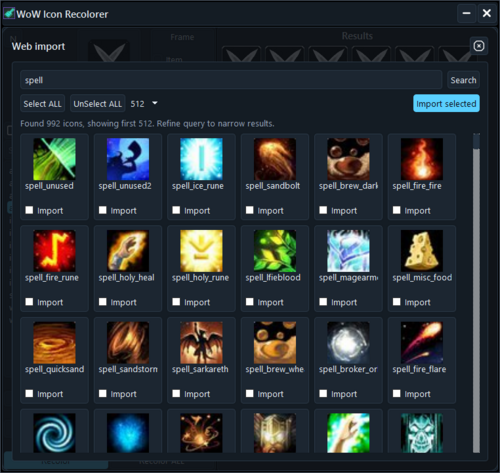
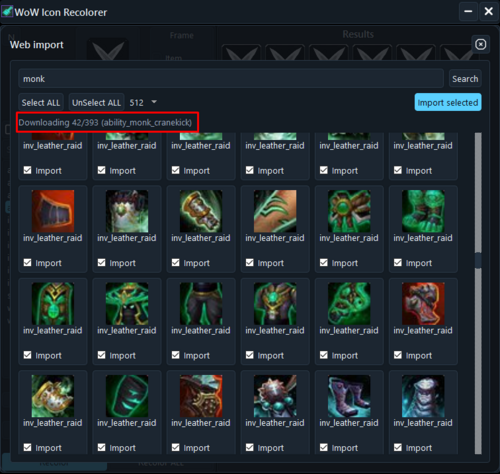
Web Import (icon search)
- Open via the “globe” button.
- Input:
- contains search by icon name (e.g. `inv_bracer`)
- or paste a wowhead page URL — the app will try to extract the `og:image` URL.
- Results:
- click a card to toggle `checked/unchecked` (checkbox works too)
- Select ALL / UnSelect ALL
- result limit: 12 / 48 / 96 / 256 / 512 / 1024 / 2048
- Import selected adds chosen icons to `Import/` (with readable names).
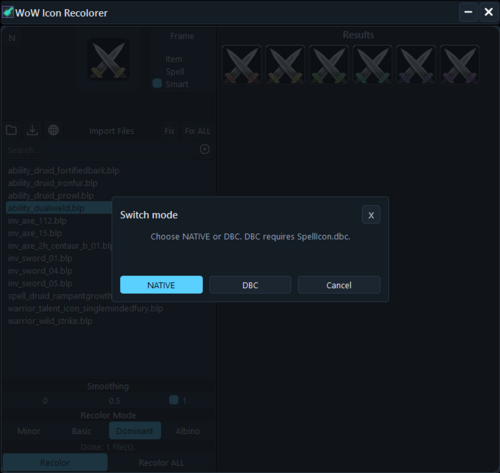
App modes: NATIVE / DBC
On first launch (and when switching modes) you will see a mode selection dialog.
NATIVE
- default mode (no DBC writing)
DBC
- requires `SpellIcon.dbc` (file dialog is limited to that exact filename)
- when selecting DBC mode the app creates a backup copy into `.DBC/`:
- example: `SpellIcon.dbc_03.01.2026_07.30_BACKUP`
- format: `dd.mm.yyyy_hh.mm_BACKUP`
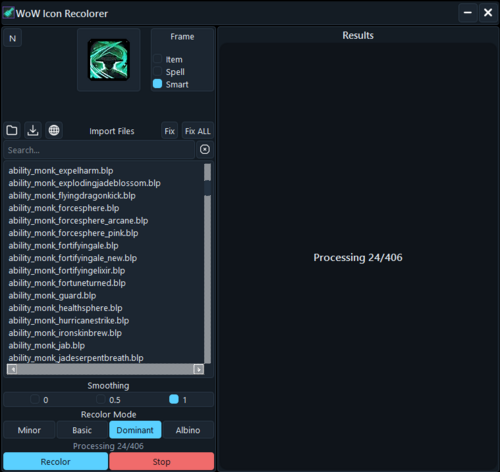
Recolor modes
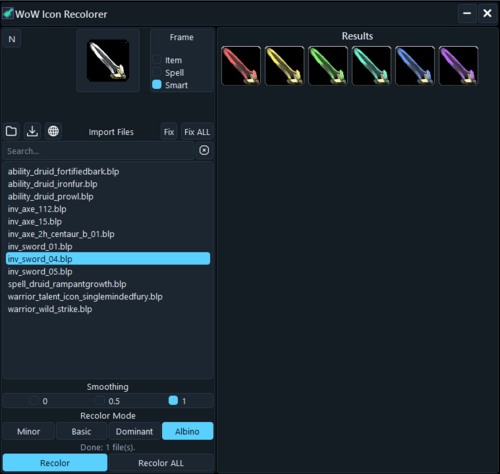
- Minor — recolors non-dominant pixels (inverse-dominant).
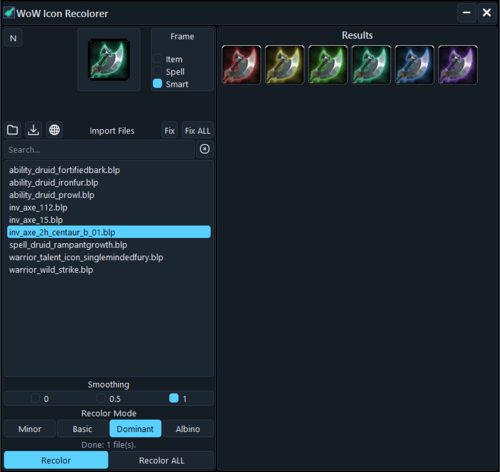
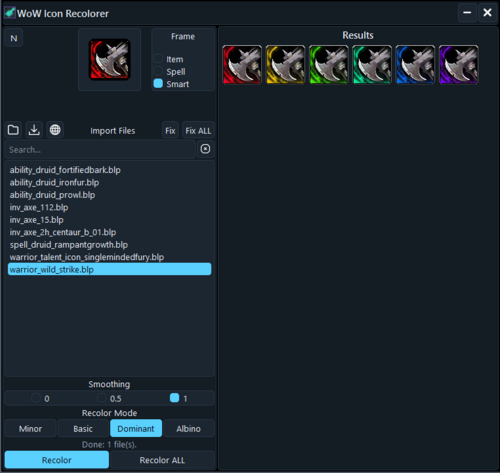
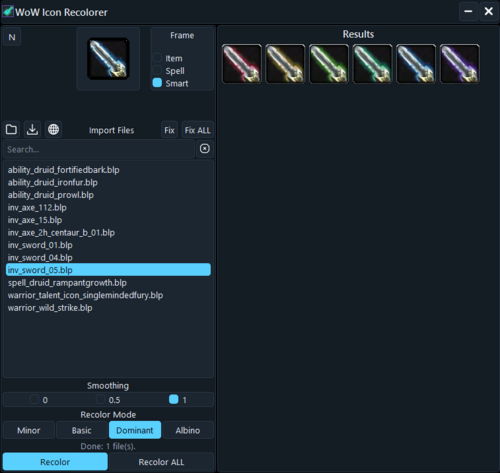
- Basic — standard recolor.
- Dominant — recolors dominant pixels.
- Albino — recolors only grayscale areas (white→black shades), leaving colored pixels untouched.
Export filenames include the preset name and the color, for example:
`ability_warrior_heroic_strike_DOMINANT_RED.blp`
Repair (Fix)
- Fix — repairs the selected `.blp` in `Import/` (frame alpha/transparency).
- Fix ALL — repairs all `.blp` files in `Import/`.
Batch recolor and Stop
During Recolor ALL, the Recolor ALL button turns into Stop — it cancels the batch process.
Temporary files (Cache)
- `Cache/` is used as a temporary workspace
- cleared on app startup and on exit
Hotkeys
- `Enter` — Recolor (selected file)
- `Shift+Enter` — Recolor ALL
- `1` — Minor
- `2` — Basic
- `3` — Dominant
- `4` — Albino
- `R` — Fix
- `Shift+R` — Fix ALL
- `Esc` — close overlays (Web Import / in-app dialogs)
Edited by siozwcg